Author Bio: I’m Steven, the founder and lead writer at USTechPortal.com, where we breaks down complex tech problems into simple, actionable guides. With a focus on real-world solutions for smartphones and connectivity, we helps millions of users navigate the digital world with confidence.
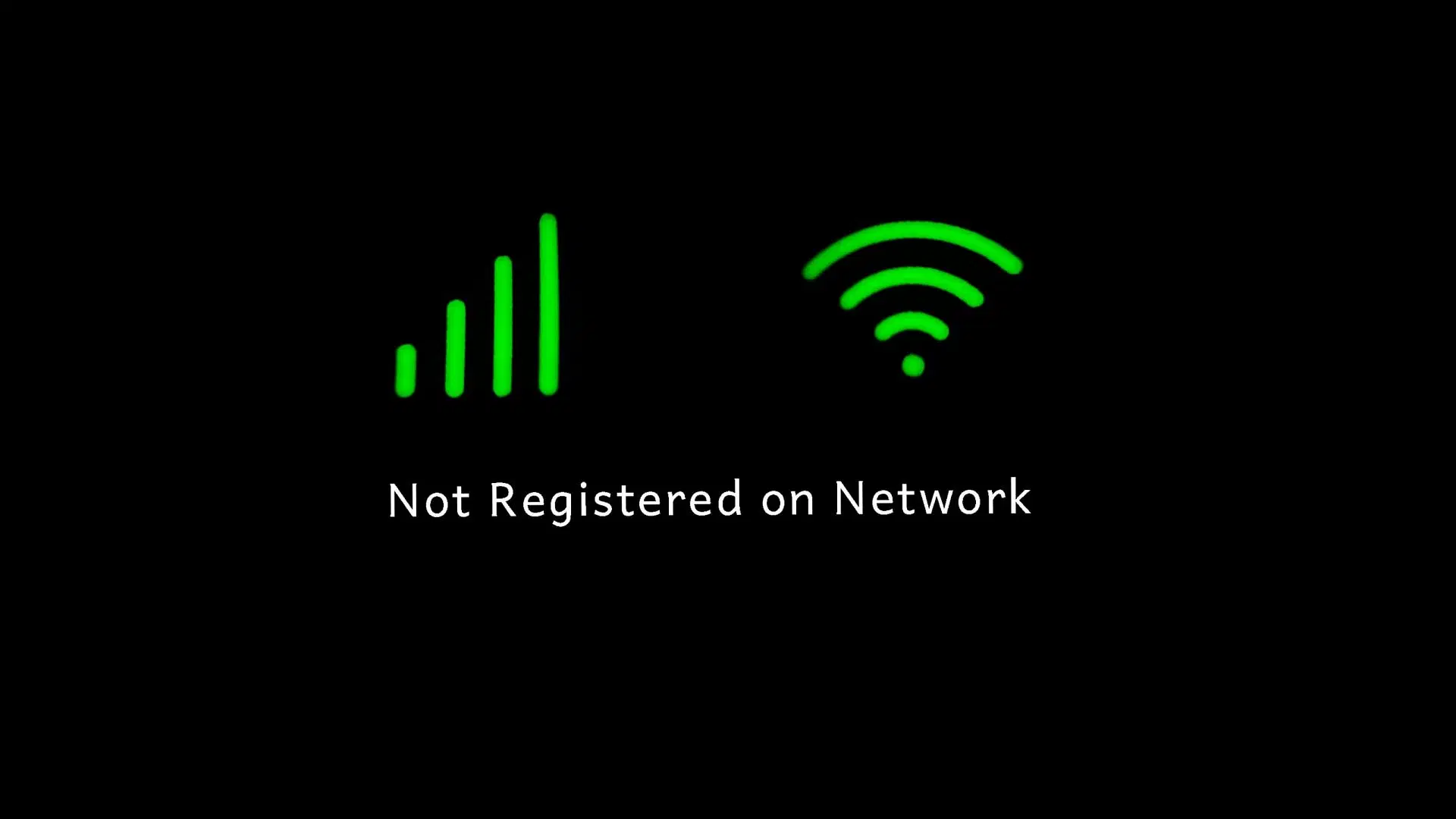
What is the “Not Registered on Network” Error?
The “Not Registered on Network” error pops up when your phone fails to connect to your mobile carrier’s network, preventing calls, texts, or data usage. It’s a common issue across Android devices (like Samsung, Xiaomi, Google Pixel, and foldables) and iPhones, often tied to SIM/eSIM problems, software glitches, or network settings.
In 2026, with the maturation of 5G Standalone (SA) networks and the early rollout of 5G-Advanced features in India, this error can stem from new complexities like network slicing, VoNR (5G calling) compatibility, or aggressive AI battery management. Carriers like Reliance Jio and Airtel are pushing these advanced networks, sometimes causing registration hiccups for older devices or during network transitions.
Sources like Lifewire and Calilio highlight that causes range from simple fixes (like a loose SIM) to trickier ones (like carrier registration issues). The good news? Most cases are fixable with a few tweaks.
Here’s why this error happens:
-
SIM/eSIM Issues: A loose, damaged, or improperly inserted physical SIM card disrupts connectivity. For eSIMs, a failed digital provisioning or a corrupted profile is a common 2026 culprit.
-
Outdated Software or Carrier Settings: Old phone software may not support modern network protocols. On iPhones, an outdated “Carrier Settings” file can specifically break 5G registration.
-
Network Misconfiguration: Automatic network selection can fail, especially in areas with dense 5G SA and 4G LTE layer coverage.
-
Weak or Unstable Signal: Low coverage, tower issues, or constant switching between 5G and 4G can block stable registration.
-
Airplane Mode or Focus/DND Glitch: Stuck radio settings or, in 2026, even a misconfigured “Focus” mode on iOS or “Digital Wellbeing” on Android can sometimes interfere.
-
Carrier & Account Issues: SIM deactivation, unpaid bills, account migration problems (common during 4G to 5G plan upgrades), or a blacklisted device can cause errors.
-
Hardware Faults: Rare cases involve faulty SIM slots or modem hardware.
-
Aggressive Battery Optimization (2026 Specific): OEMs now use smarter AI to save battery, which can sometimes over-restrict background network services required for constant registration.
Why Fix the “Not Registered on Network” Error ?
In today’s hyper-connected world, a phone that can’t connect is like a car without wheels. With India’s 5G-Advanced trials beginning and over 1.3 billion mobile users, staying online is critical for everything from smart home control and instant UPI payments to receiving OTPs for banking and government services.
This error can disrupt your digital life instantly. While some fixes are quick (like restarting), others require deeper troubleshooting, especially with eSIMs or new 5G-SA network compatibility. Sources like Honor and iMobie emphasize that simple steps often resolve the issue, but ignoring it risks prolonged disconnection. In 2026, fixing this error fast is essential for productivity, security, and staying in the loop.
Here are the benefits of resolving this error:
-
Stay Connected: Restore calls, texts, and data for seamless communication.
-
Avoid Digital Disruption: Prevent downtime for work, banking (UPI), and essential services.
-
Save Money: DIY solutions avoid expensive repair shop visits.
-
Support Advanced Networks: Ensure compatibility with India’s evolving 5G-SA and 5G-Advanced networks.
-
Boost Productivity: Keep critical apps like WhatsApp, Paytm, and work suites running smoothly.
-
Prevent Frustration: Eliminate the stress of a non-functional device in a connected era.
Top Tips for Fixing “Not Registered on Network” in 2026
To tackle this error like a pro, here are some updated tips for 2026:
-
Diagnose First, Then Act: Use your phone’s built-in diagnostic tool (e.g., Samsung Members, Xiaomi’s Service & Feedback) before anything else.
-
Check eSIM Profiles: If using an eSIM, re-downloading the profile is the new “reinsert the SIM.”
-
Update Everything: Keep your phone’s OS and Carrier Settings (iPhone) current for network compatibility.
-
Manage Battery Optimization: Teach your phone’s AI not to restrict your carrier’s app or connectivity services.
-
Manually Select Network: This remains a powerful fix, especially in areas with new 5G tower congestion.
-
Reset Sparingly: Use network resets as a last resort to avoid reconfiguring all connections.
-
Contact Carrier Early: For eSIM and 5G plan issues, your carrier’s support is often the fastest solution.
-
Backup Before Fixes: Always ensure your data is synced before any reset steps.
Step-by-Step Guide to Fixing “Not Registered on Network”
Ready to get your phone back on track? Follow this beginner-friendly guide to troubleshoot and fix the “Not Registered on Network” error. These steps work for most Android devices and iPhones in 2026.
Step 1: Restart Your Phone (The Universal Fix)
-
Why: Restarts clear temporary software glitches and reset the modem.
-
How: Press and hold the power button, then select “Restart.” Wait 1–2 minutes.
-
2026 Tip: For persistent issues, use the “Restart” option, not just “Power Off & On,” as it performs a fuller reset on modern devices.
Step 2: Toggle Airplane Mode
-
Why: Forces a fresh scan and connection to all available networks.
-
How: Swipe down to Quick Settings, tap “Airplane Mode” on (wait 15 sec), then off.
-
2026 Tip: Also, temporarily disable any “Focus” or “Do Not Disturb” modes, as they can sometimes interfere.
Step 3: Check and Reinsert the SIM Card / Refresh eSIM
-
Why: A loose, dirty, or deactivated SIM/eSIM is a top cause.
-
How (Physical SIM): Power off, eject the SIM tray, clean the SIM with dry cloth, reinsert firmly.
-
How (eSIM – 2026 Update): Go to
Settings > Cellular > [Your eSIM]. Tap “Remove Cellular Plan.” Then, re-add it by scanning your carrier’s QR code again (have it ready). -
Tip: Swap physical SIM slots if your phone has dual SIMs to test the slot itself.
Step 4: Manually Select Your Network
-
Why: Bypasses automatic selection, which can get stuck on a congested tower.
-
How (Android): Go to
Settings > Connections > Mobile networks > Network operators. Turn off “Select automatically” and pick your carrier (e.g., Jio, Airtel). -
How (iPhone): Go to
Settings > Cellular > Network Selection. Disable “Automatic” and select your carrier. -
Tip: If you don’t see your carrier, move to an open area with better signal and try again.
Step 5: Update Your Phone’s Software & Carrier Settings
-
Why: Critical for 5G-SA and security compatibility.
-
How (OS Update):
Settings > Software Update(Android) orSettings > General > Software Update(iPhone). Install all updates. -
How (Carrier Settings – iPhone): Go to
Settings > General > About. If a carrier update is available, a prompt will appear. This is crucial. -
2026 Tip: Enable automatic updates to avoid falling behind on critical connectivity patches.
Step 6: Reset Network Settings
-
Why: Nuclear option for corrupted network configurations. This will delete saved Wi-Fi and Bluetooth pairings.
-
How (Android):
Settings > System > Reset options > Reset Wi-Fi, mobile & Bluetooth. -
How (iPhone):
Settings > General > Transfer or Reset iPhone > Reset > Reset Network Settings. -
Warning: Note down important Wi-Fi passwords before proceeding.
Step 7: Check for Carrier, Account, or Hardware Issues
-
Why: To rule out problems beyond your device.
-
How:
-
Test SIM in Another Phone: Confirms if the issue is with the SIM/carrier or your phone.
-
Check IMEI/Blacklist: Dial
*#06#for your IMEI. Check it on a site likeimei.info. -
Contact Your Carrier: Call Jio, Airtel, etc., to confirm account status, check for outages, or reprovision your SIM/eSIM.
-
Service Center: If all else fails, a faulty antenna or modem may need professional repair.
-
Tips for Preventing “Not Registered on Network” Errors
-
Enable Auto-Update: For both OS and apps to maintain network compatibility.
-
Handle eSIMs Carefully: Keep your carrier’s QR code secure for easy re-download.
-
Monitor Signal in New Areas: Your phone may struggle to register in very dense urban areas or new developments with freshly activated towers.
-
Review Battery Optimization: Go to
Settings > Batteryand ensure your carrier’s app (e.g., MyJio) is not restricted. -
Use Trusted Carriers & Plans: Stick with reputable providers and ensure your plan is active, especially after 5G upgrades.
Common Mistakes to Avoid
-
Panic-Resetting Everything: Try basic fixes (Restart, Airplane Mode, Network Selection) before a full Network Reset.
-
Ignoring Carrier Settings Updates: iPhone users often miss this specific fix.
-
Forcing SIM Trays: Using incorrect tools can damage the tray and port.
-
Assuming Hardware Failure Immediately: 90% of cases are software or carrier-related. Exhaust those options first.
-
Not Checking Account Status: An unpaid bill or failed plan migration is a simple fix at the carrier’s end.
FAQs
Q: What’s the most common new cause for this error in 2026?
A: For users on 5G plans, an outdated Carrier Settings file (on iPhone) or an incompatible network configuration after a software update are leading causes. For eSIM users, a corrupted eSIM profile is also very common.
Q: Can this error happen on both Android and iPhone?
A: Yes. It’s frequently seen on Android devices (Samsung, Xiaomi, etc.) but iPhones are not immune, especially after iOS updates or when using eSIMs.
Q: Will resetting network settings delete my photos or apps?
A: No. It only erases saved Wi-Fi networks, Bluetooth pairings, and cellular preferences. Your personal data (photos, apps, messages) remains safe. Just remember to re-join your Wi-Fi networks afterward.
Q: How do I know if my phone is blacklisted?
A: Dial *#06# to get your IMEI number. Then, use a free online IMEI checker from a reputable site. A blacklisted status will typically show as “Lost/Stolen” or “Blocked.”
Q: My eSIM shows “Not Registered.” What should I do first?
A: First, turn Airplane mode on and off. If that fails, go to your cellular settings, remove the eSIM profile, restart your phone, and then re-add the eSIM by scanning your carrier’s QR code again. Ensure you have a stable Wi-Fi connection.
Q: Is this error related to 5G-Advanced or network slicing?
A: It can be. Early adopters on cutting-edge networks might face registration hiccups if their device firmware isn’t fully optimized. Manually selecting your network or temporarily forcing your phone to use “4G/LTE” in network settings can be a workaround while waiting for a stability update.
Q: How long does it take to fix this error?
A: Simple software fixes take 2-10 minutes. If the issue is with your carrier account (e.g., SIM reprovisioning), it could take from a few minutes to several hours after you contact their support.
Final Thoughts
The “Not Registered on Network” error can be a frustrating barrier in our connected lives. However, in 2026, with this updated guide, you have a clear roadmap from the simplest restart to handling advanced eSIM and 5G issues. The key is systematic troubleshooting: start with quick software fixes, then move to network and SIM settings, and finally involve your carrier.
By understanding the common causes—from a dusty SIM card to an outdated carrier bundle—you can solve most problems yourself, saving time and money. Remember, if DIY steps don’t work, your mobile provider’s support team is your best ally for account or network-related solutions. Stay updated, and stay connected